Getting started
Getting started
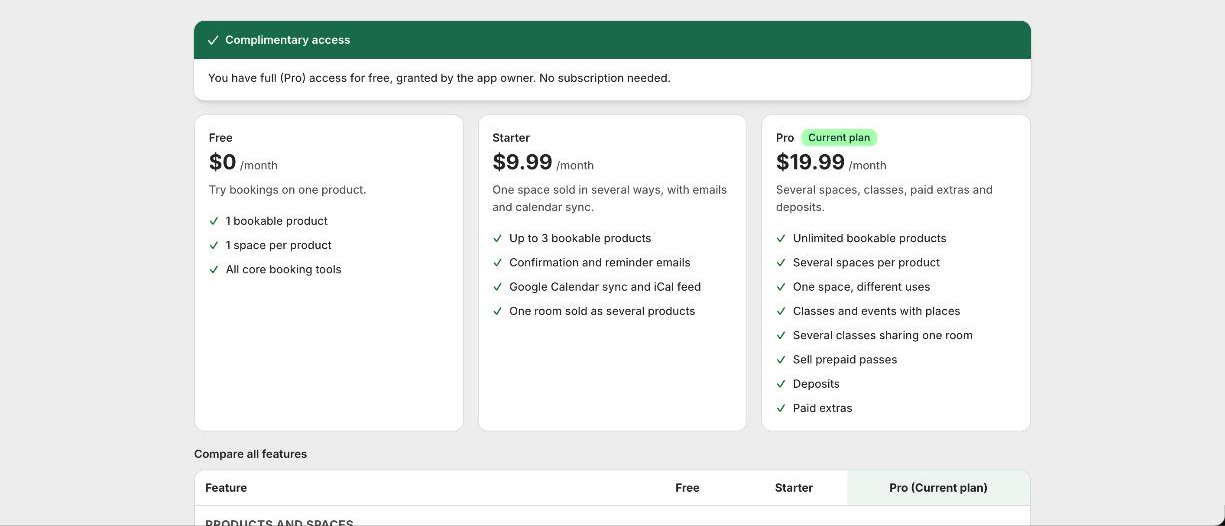
Set up Booker on Shopify: choose a plan, set your hours, create a bookable product, add the calendar, and take a test booking.
Set up a product
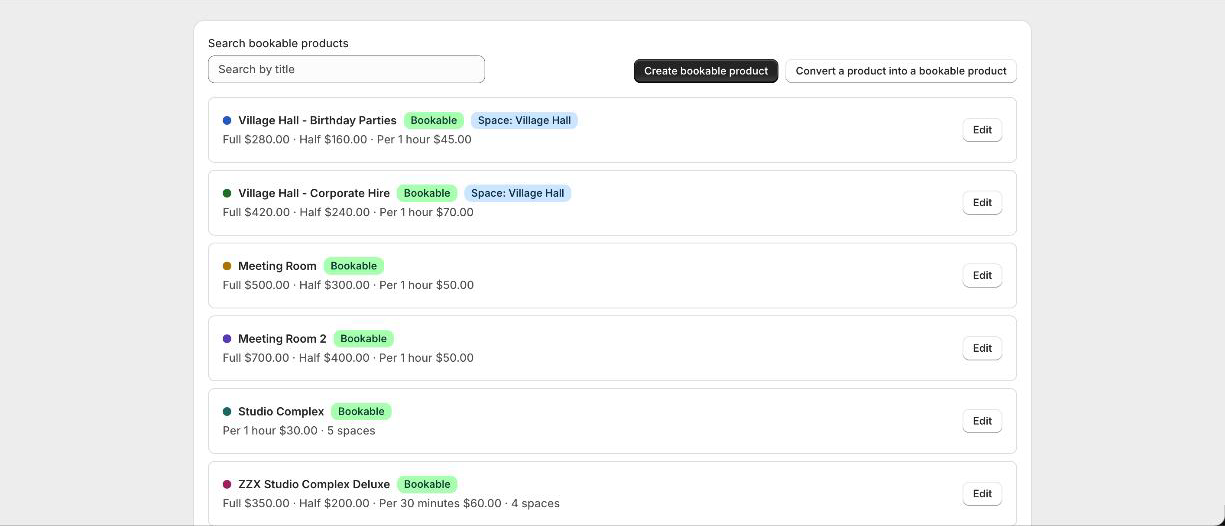
Create a bookable product from an example or convert one you already sell, then edit hours, prices, extras and questions from the Products page.
Install the app block
Add the Booking Calendar app block to your product template, turn on the cart guard, and hide the theme buy buttons.
Install with a code snippet
Add the Booker calendar to older Shopify themes by pasting a snippet into the product template and loading the embed script.
What customers see
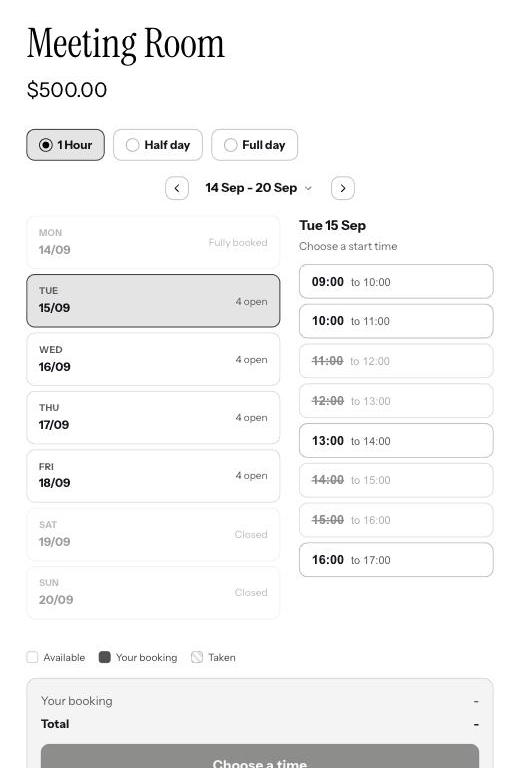
The customer side of a Booker booking on Shopify: the calendar on the product page, the hold, the cart, checkout, the emails and their passes.
Prices and spaces
Prices and how customers book
Set hourly, half day and full day prices, choose the slot length and cap how long one booking can be.
Several spaces and different uses
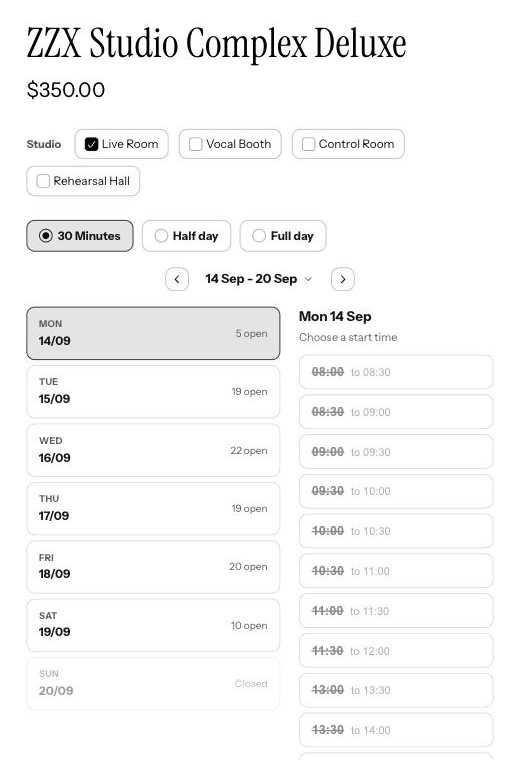
Sell several spaces, name each with its own prices, sell one space in different ways, and offer a discount for booking several at once.
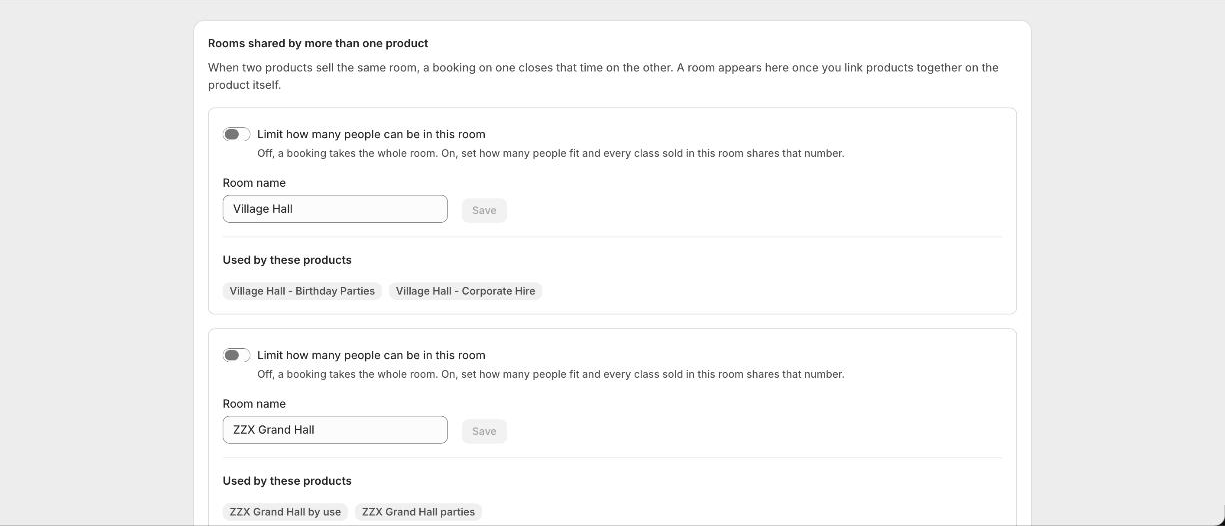
Two products, one room
Link two Shopify products that are really the same room, so a booking on one blocks that time on the other.
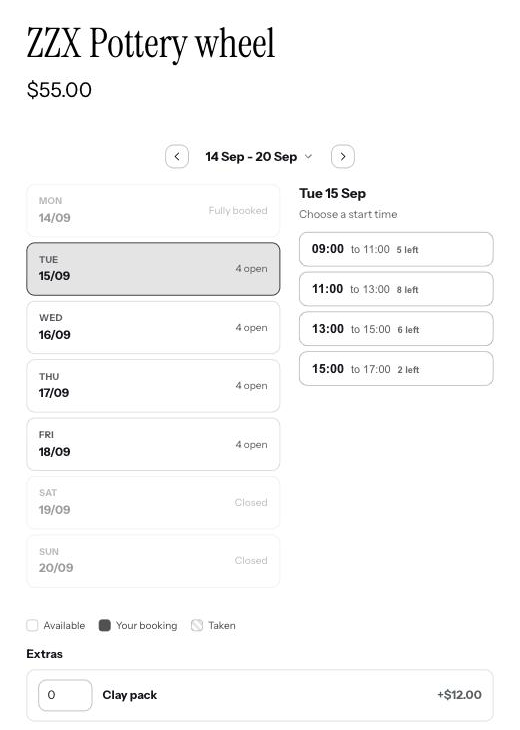
Classes and events with places
Sell places in a class, workshop or tour with Booker: set places per session, price per place, and let people book until it is full.
Events calendar
List your classes and events on one storefront page with dates, times and places left. Private room hires stay off it.
Passes and money
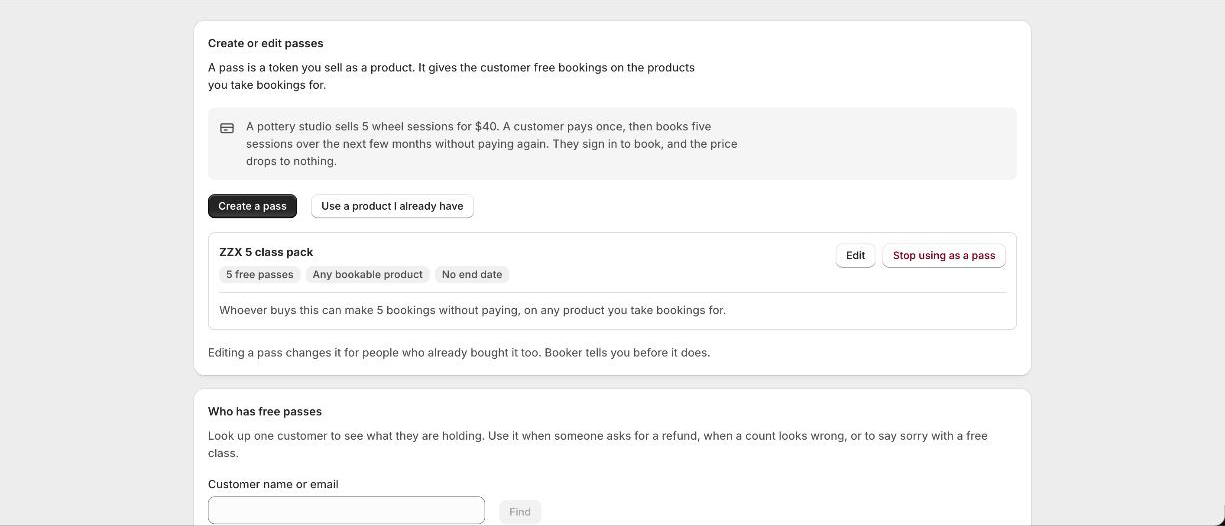
Passes and memberships
Sell class packs and memberships on Shopify. Customers spend passes on bookings at checkout, one pass per place, and get them back if a booking is cancelled.
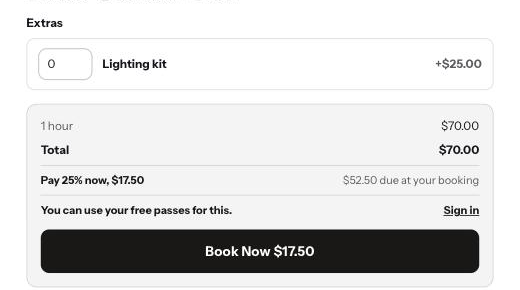
Deposits and paid extras
Take a percentage deposit at checkout and offer paid extras per product with Booker on Shopify.
Refunds and cancellations
Cancel or refund a booking order in Shopify and Booker frees the time, removes the calendar event and returns any passes. Partial refunds, deposits and walk-ins covered.
Booking features
Gaps, questions and per-product hours
Set a gap between bookings, add your own booking questions, and give a product its own hours and closed dates.
Reminders, emails and SMS
Send booking confirmation and reminder emails on Starter, and SMS reminders with your own Twilio on Pro.
Posting something out
Turn on Ask for a delivery address on a bookable product that also posts something out. Shopify collects the address and applies your delivery charges.
Availability and bookings
Opening hours and closed dates
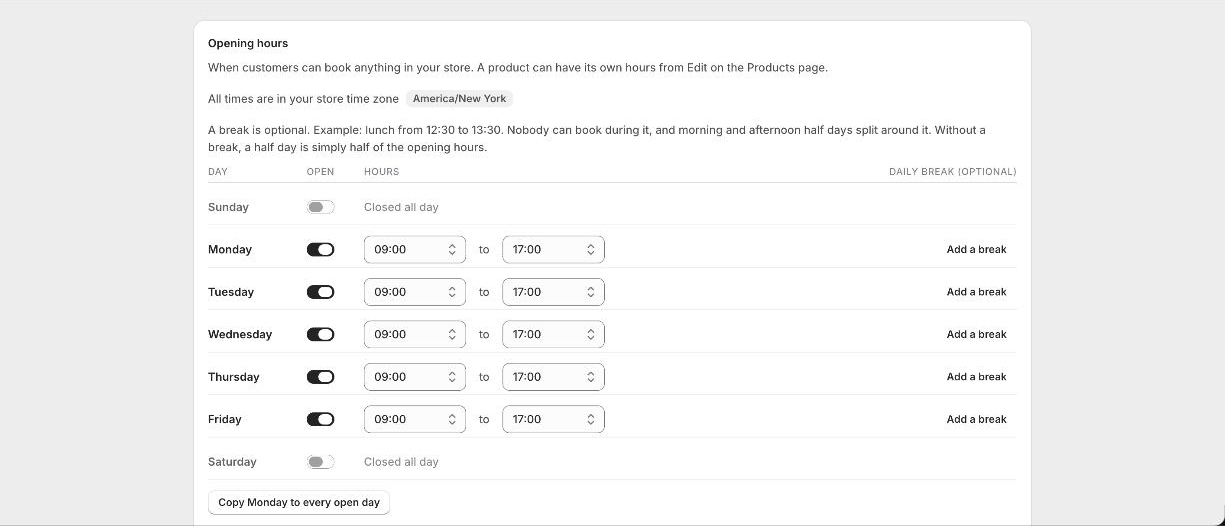
Set weekly opening hours, a daily break, closed dates and a minimum notice period in Booker, and override them per product.
Time zones and time formats
Booker uses your Shopify store time zone everywhere. Customers see your local times whatever their own zone. Choose 12-hour or 24-hour under Appearance.
Double-booking protection
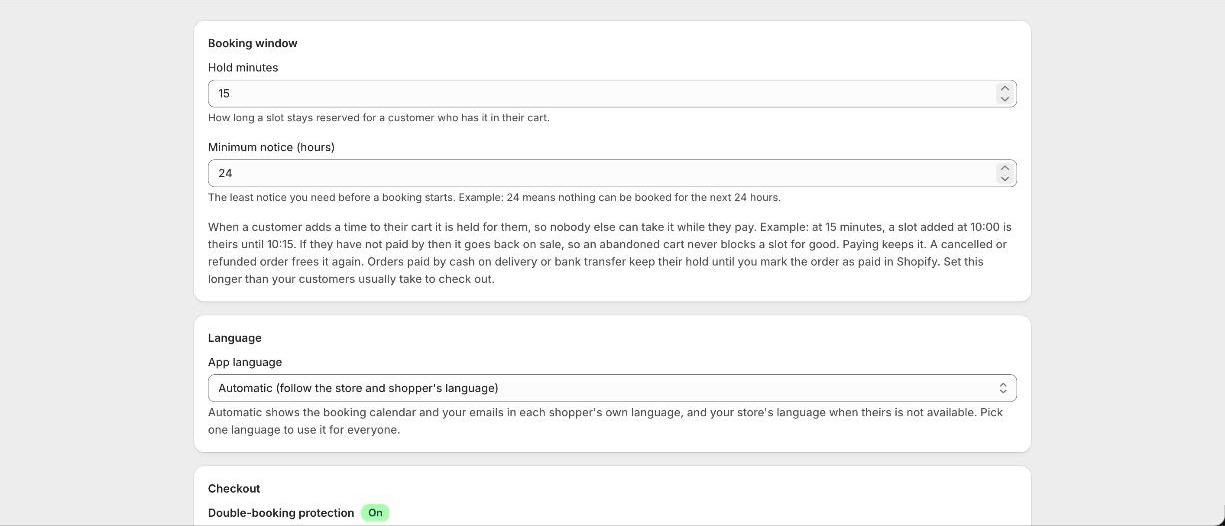
How Booker holds a time at add to cart, keeps it with the cart guard, and rechecks at checkout to prevent double bookings.
Managing bookings
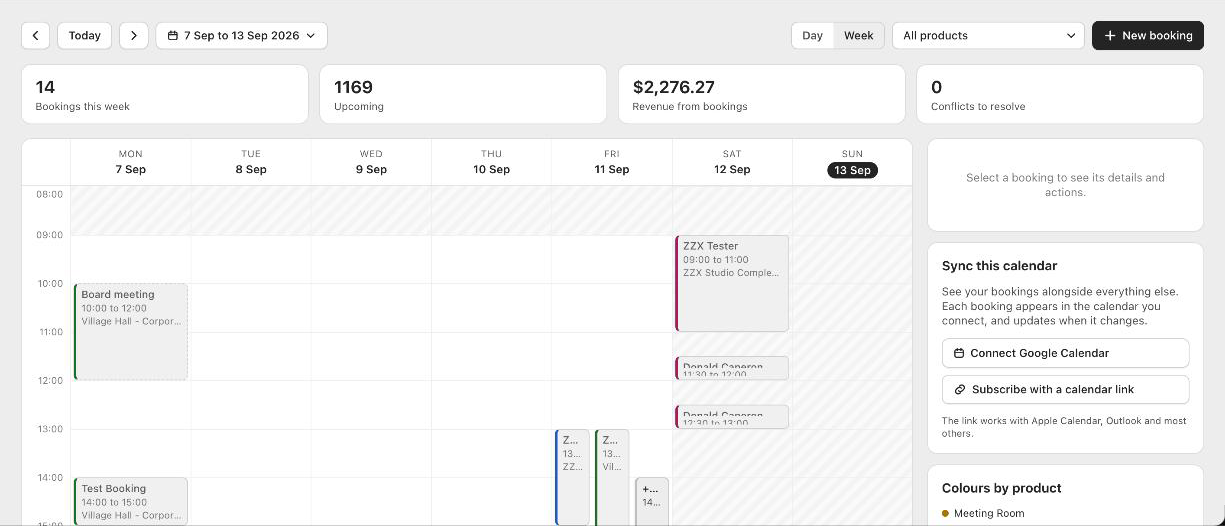
View bookings on the Booker calendar, add walk-in bookings by hand, and free a time by cancelling or refunding the order.
The Planner: your day at a glance
See one day across every room and class, who is coming to each session, what they paid, and leave notes for your staff. Print a register to tick people off.
Customers changing their own bookings
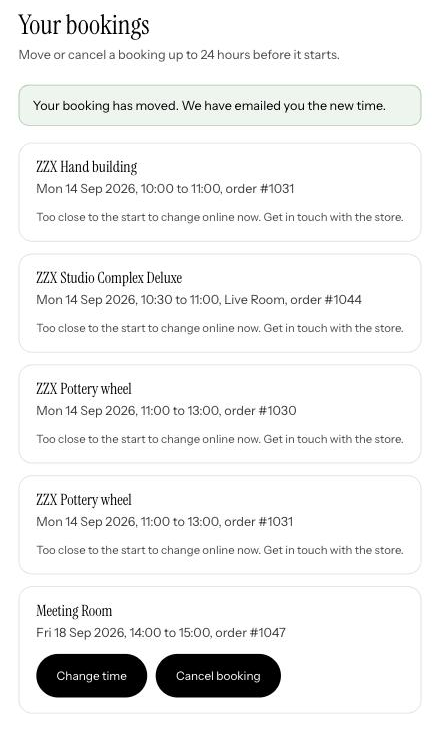
A signed-in customer can see, move and cancel their bookings on your Shopify store. Set the notice period, and Booker frees the time and returns any pass.
Calendars

Google Calendar and troubleshooting
Connect Google Calendar sync on Starter or Pro, subscribe to the booking feed, and troubleshoot a calendar that will not load.
Calendar links and invites
Subscribe to your Booker bookings from Apple Calendar, Outlook or Airbnb, send customers a calendar invite, and follow other calendars so their bookings block your times.
Appearance
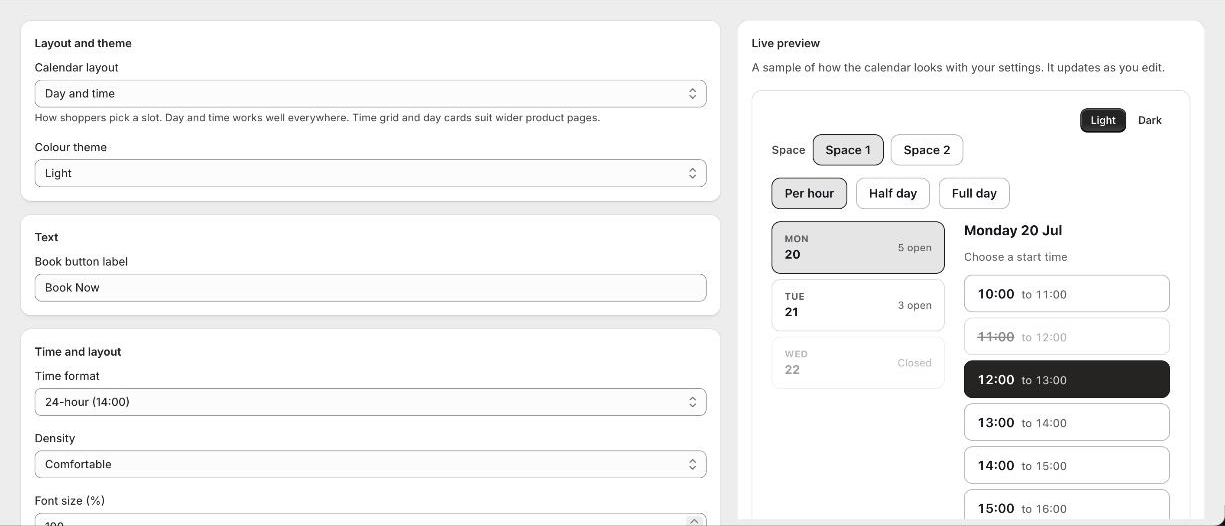
Account
Settings and plans
Configure holds, notice periods and emails under Settings, and compare the Free, Starter and Pro plans for Booker on Shopify.
Languages and currencies
Booker shows the booking calendar and emails in 98 languages, automatically or one you choose, and converts extras and deposits under Shopify Markets.
Uninstalling and your data
What happens when you uninstall Booker: the calendar stops, bookings are kept for 48 hours then removed, Google Calendar is disconnected, and how GDPR requests are handled.