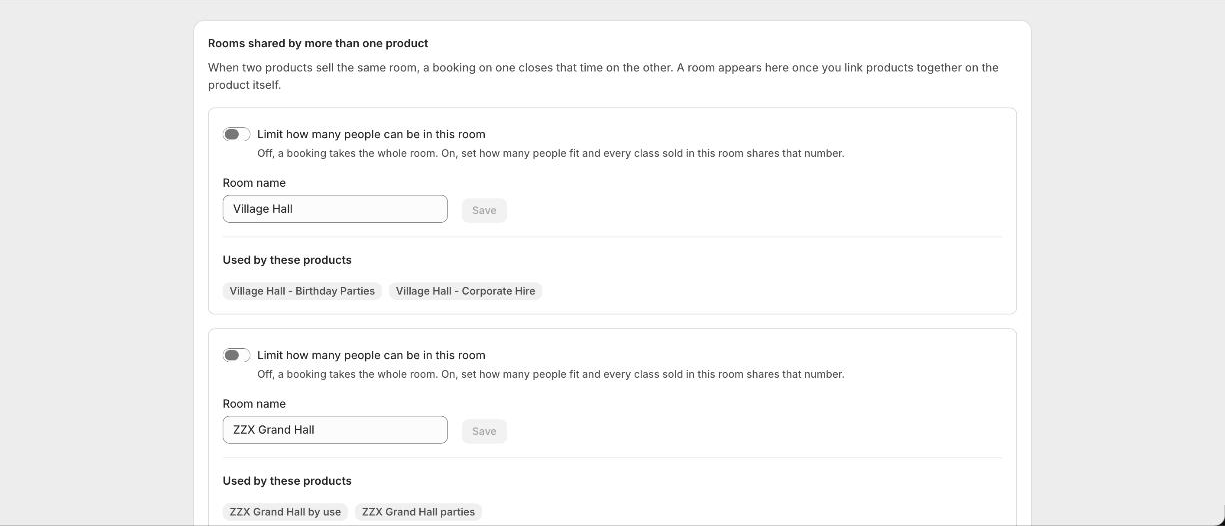
What it is for
Say your village hall is sold as Birthday parties on one product page and as Corporate hire on another. They have different photos, different wording and different prices, but there is only one hall. Shared spaces makes Booker treat them as one room, so a party booked on Saturday afternoon removes that time from corporate hire as well.
How to set it up
- 1Set up both products
Create each one as normal, with its own prices and its own page.
- 2Link them
Open one of them and find Same space as another product. Turn it on and pick the other one.
- 3That is it
Both calendars now show the same availability. You never have to keep them in step by hand.
When you can use it
It works for a product that is a single space, and for one space sold in different ways. It is not available for a product with several different spaces, or for a class with places, because those are not one shared room. If you link more than two, they all share the same availability.
One space or two products
If you only want different prices for different uses and one product page is enough, sell one space in different ways instead. Use shared spaces when each use needs its own product page, its own photos or its own description.
Good to know
Is there a limit on how many products share a space?
No. Link as many as you need and they all pool the same availability.
Does it work with a gap between bookings?
Yes. The gap on the product being booked is applied across all of them, so keep the gap the same on each.
Which plan is it on?
Shared spaces works on every plan, though the product limits on Free and Starter still apply.