Start from an example
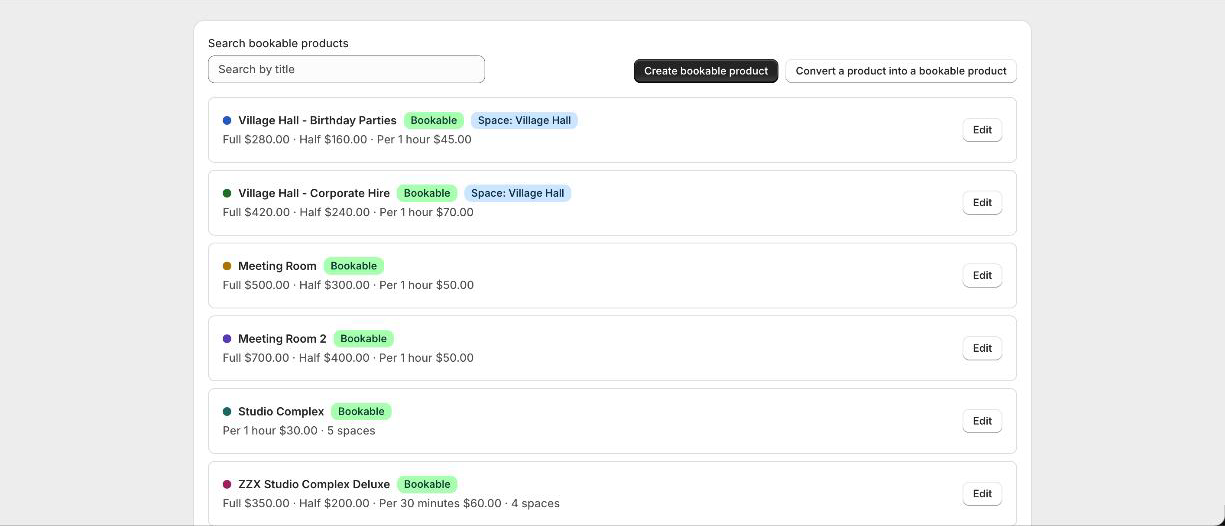
On the Products page press Create bookable product. Booker shows a list of real examples: a meeting room, a photography studio, a rehearsal room, a fitness class, a workshop and more. Pick the closest one and it asks only the questions that apply to that kind of thing.
The questions
- 1What it is called
The product name your customers see, for example Studio B or Wheel throwing for beginners.
- 2How customers book it
By the hour, by the half day, by the full day, or any mix of those. A class or event is booked by the place instead, with a set number of places per session.
- 3What it costs
A price for each way you sell it. Booker creates the product, its prices and its variants in Shopify for you.
- 4Anything extra
Its own opening hours if they differ from the store, several identical spaces, or a room it shares with another product. You can leave all of this for later.
Turn a product you already sell into one
Press Convert a product into a bookable product, pick it from your catalogue, and answer the same questions. The product keeps its name, images and description; Booker adds the prices and the calendar.
Change it later
Every bookable product has an Edit button on the Products page. It opens the full setup, top to bottom: prices, hours and closed dates, a gap between bookings, a deposit, paid extras, your own questions, several spaces, a shared room. Change any part and save. The colour dot beside each product is the colour its bookings show in on your calendar.
What it looks like in Shopify
Booker keeps the product in Shopify in step with what you set up here. You do not need to touch its variants or prices in Shopify, and it is better not to: the next save from Booker would put them back.
Good to know
How many bookable products can I have?
One on Free, three on Starter, as many as you like on Pro. Converting a product counts the same as creating one.
Can a product stop being bookable?
Yes. Open it from the Products page and switch booking off. It goes back to being an ordinary product and its past bookings stay on your calendar.
Where do I put the calendar on the page?
That is a theme editor step, done once for your product template. See Install the app block.