Add the calendar and cart guard
- 1Add the Booking Calendar block
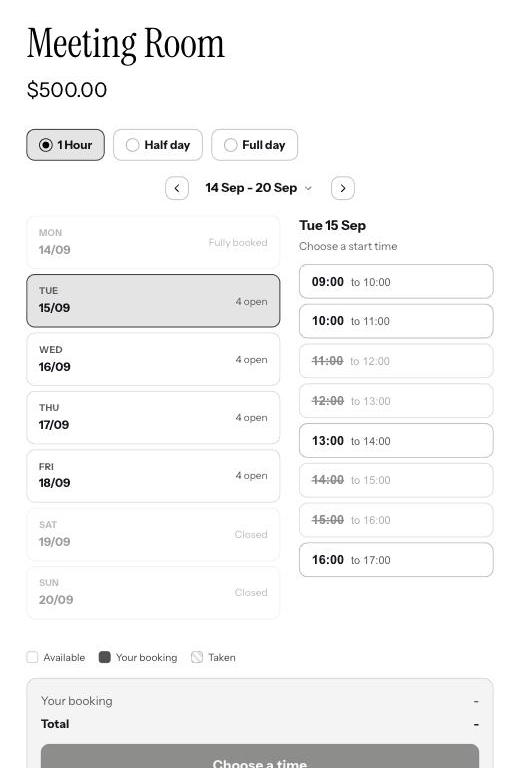
In the theme editor, open a product template and add the Booking Calendar block where you want the calendar to appear.
- 2Choose what happens after someone books
On the block itself, under After add to cart, pick what happens once a booking goes in the cart: go to the cart page, which is the default, stay on the page, or run your own code. Custom code is for developers, for example to open your theme cart drawer; enter the code only, with no script tags. This setting lives on the block rather than in Appearance, because it works with your theme cart. It is on every plan.
- 3Turn on the Booking Cart Guard
In the theme editor under App embeds, turn on the Booking Cart Guard. It runs on the cart and keeps a held time valid while the customer pays.
- 4Hide the theme buy buttons
On bookable products, hide your theme add to cart, buy it now, price, quantity and variant pickers. The calendar replaces all of them.
- 5Book from your own button (optional)
The calendar has its own Book button. To book from a different button instead, such as a sticky bar, add the data-booking-book attribute to it and Booker mirrors the Book button onto it. It stays disabled until a time is picked. There is also a standalone Book Button block if you want the button somewhere else on the page, and a Price block that shows the running total. The Price block needs the calendar on the same page to show anything.
Why hide the theme buttons
The calendar handles the price, the quantity and adding the booking to the cart. If you leave your theme buy buttons on a bookable product, someone can buy it without picking a time.
Good to know
Which themes support the app block?
Any Online Store 2.0 theme. On older themes, use the code snippet instead.
Do I need the cart guard?
Yes. Turn it on for every store that uses the calendar, or a held time can be lost on the way to checkout.